Instagram Reels Download
Download reels in HD quality without watermark
Fast Download
HD Quality
No Login
3 Simple Steps
 1
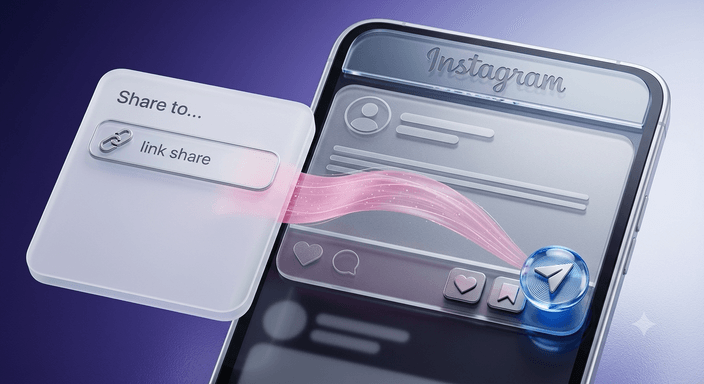
1Copy Link
Open Instagram and copy the link of the reel, video, photo, or story you want to download.
 2
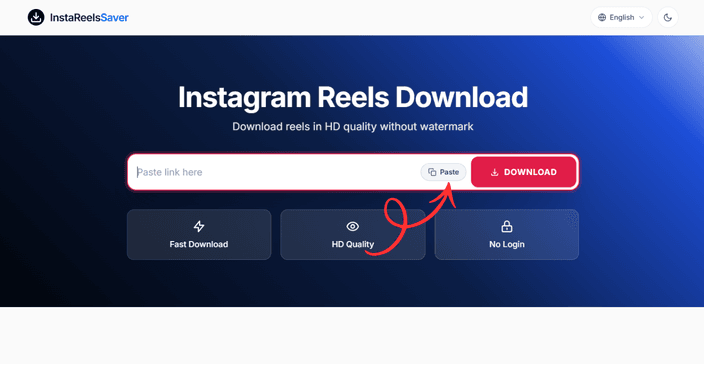
2Paste Link
Paste the copied link into the input field above and click the Download button.
 3
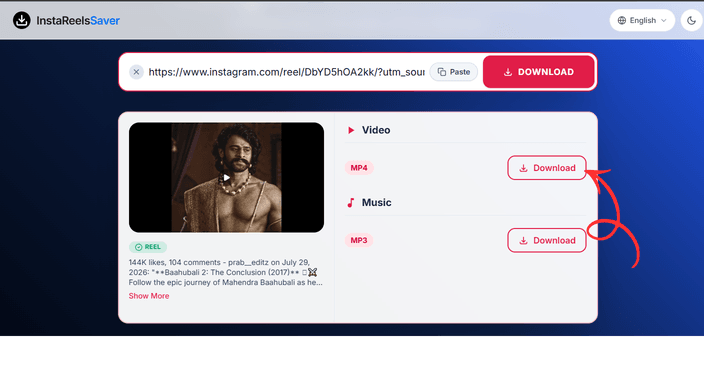
3Download
Preview the media and click the download button to save it to your device in HD quality.


Why use InstaReelsSaver?
No Watermark
Download content in its original form without any logos or watermarks added.
HD Quality
Get the highest quality available — up to 1080p for videos and full resolution for photos.
All Content Types
Reels, videos, photos, carousels, stories, highlights, and audio — we support them all.
No Login Required
Just paste the link and download. No account, no sign-up, no personal data needed.
Anonymous Viewing
View and download stories without appearing in the viewer list. Complete privacy.
Lightning Fast
Our servers fetch media instantly. Download in seconds, not minutes.
Instagram Reels Download in HD and 4K — How the Free Downloader Works
InstaReelsSaver is a free Instagram downloader that runs in your browser. Paste the link of any public post — a reel, a video, a photo, a carousel, a story, a highlight or a track with audio — and the tool returns the original file so you can keep a copy on your phone, tablet or computer. There is no app to install, no extension, no account to create and nothing to pay: the whole flow happens on this page in a couple of seconds, and it works the same way on every device you own.
Every post on Instagram has its own shareable URL, and that URL is the only input the tool needs. Copy it from the Instagram app with the share button, paste it into the field at the top of the page and press DOWNLOAD. The downloader works out what kind of content the link points to, shows you a preview, and hands back the file exactly as the creator uploaded it — original resolution, original audio, no watermark and no re-compression.
How to Download an Instagram Reel, Step by Step
Start in the Instagram app or on instagram.com. Open the reel you want to keep, tap the share icon (the paper airplane) and choose Copy link. Come back to InstaReelsSaver, paste the URL with the Paste button or your keyboard's paste shortcut, and press DOWNLOAD. A preview appears within seconds with a Download button under it — tap that button and the file lands on your device.
The steps are identical for every content type; only the destination folder changes. On an iPhone, files saved from Safari go to the Files app → Downloads, and you can long-press the preview and choose Save to Photos to put a reel straight into your camera roll. On Android, downloads land in the Downloads folder and show up in the gallery or file manager. On a desktop, they arrive in your browser's usual Downloads folder. Carousels come back slide by slide, with a Download All as ZIP button when a set is long enough to be worth bundling.
- Copy the full link — always use Share → Copy link; URLs trimmed from comments or bios usually fail.
- Paste it whole — the Paste button reads your clipboard, so a long URL is never cut in half.
- Preview before saving — the preview confirms you picked the right post before anything is downloaded.
What You Can Download — Every Instagram Format
One field handles all of them, so you rarely need to think about which page a format belongs to. If you prefer a dedicated tool, each one is a click away: the reels downloader, the video downloader for regular posts and IGTV, the photo downloader, the carousel downloader for multi-slide posts, the story downloader for 24-hour stories, the highlights downloader for profile covers, and the audio downloader for music and voice-over tracks.
The homepage tool detects the type from the link itself, so a carousel URL returns every slide, a story URL returns the story while it is still live, and a music URL returns only the sound. Nothing is trimmed or renamed into an odd format: videos stay MP4, photos keep their original dimensions, and audio comes back as a normal MP3 you can play in any music app.
Original Quality — HD, Full HD and 4K
A saved copy is only useful if it looks like what you saw in the feed. The file is fetched as it was uploaded rather than re-encoded, so the resolution you receive is the resolution the creator published: a 1080p upload stays 1080p, a 4K upload comes back in full 4K, and photos keep every pixel instead of becoming a screenshot-quality copy. The original soundtrack and frame rate travel with the video.
Two things decide what you end up with: the quality of the original upload, and your connection while the file transfers. The tool always offers the best copy Instagram holds for that post — if you need a lighter file for messaging, downscale it afterwards instead of accepting whatever a random compressor chose for you.
Works on Any Device — No App, No Extension
InstaReelsSaver is a responsive web page, which means an iPhone in Safari, an Android phone in Chrome, a tablet, or a Windows, Mac or Linux machine all get the same downloader with the same steps. There is no app-store version to hunt down, no extension to grant permissions to and no updates to wait for — and because nothing is installed, there is equally nothing to uninstall later.
The tool loads in the page you are on, and the result appears right there instead of bouncing you through a chain of redirects. Add the site to your home screen or bookmark it, and the downloader is one tap away whenever a link needs saving.
Safe by Design — No Login, No Personal Data
The tool never asks for your Instagram username, password or confirmation code, and it never needs access to your account: public posts are resolved without signing in, so there is no credential for anyone to steal and no account that could be flagged for unusual sign-in activity. Story viewing works the same way — you see the story without appearing in the creator's viewer list.
Downloads are processed for the moment you request them and are not kept in a library on our side, and only public content is supported: private, friends-only or expired posts cannot be fetched, by design. The details are written in plain language in our privacy policy and in the guide does InstaReelsSaver collect personal data?.
Download Responsibly — Copyright and Fair Use
A reel is somebody's work. Keeping a copy for offline viewing, study or inspiration is personal use; re-uploading it, presenting it as your own, or placing it in an ad or a monetized compilation is not. When a creator owns the rights — which is most of the time — ask before redistributing, and remember that music inside a reel is usually licensed to Instagram for streaming rather than for reuse.
Instagram's own terms apply to anything you save as well. InstaReelsSaver is an independent tool, not affiliated with or endorsed by Instagram or Meta; it simply downloads media you are already allowed to view. For the longer discussion, see is downloading Instagram reels legal? and is InstaReelsSaver safe to use?.
When a Link Does Not Work — Quick Fixes
Failed downloads almost always come down to one of five causes, each with an easy fix. The post belongs to a private account, which the tool does not fetch by design. A story or live replay expired — stories disappear after 24 hours. The link was copied from a comment, bio or ad instead of the post's share menu, so re-copy it with Share → Copy link. The browser blocked the file, which you can allow in its download or pop-up settings. Or the URL was trimmed on its way to the clipboard, losing the parameters that identify the post — paste the full address exactly as copied.
If the fetch times out, refresh the page and paste the link again — retries are free and unlimited. Still stuck? The FAQ below answers most of the specifics, and contacting us with the link and what happened gets you a direct answer.
Guides, Answers and Next Steps
New here? How to use InstaReelsSaver walks through the whole flow, and will someone know if I save their reel? answers the privacy question people ask most. The other common ones are covered properly rather than in a paragraph of filler: is it free?, does a download keep the audio?, saving reels with subtitles and what happens behind the scenes when you paste a link.
Shorter, task-sized walkthroughs live in the how-to guides hub: saving a reel straight to your gallery, taking only the audio out of a reel and turning an Instagram link into a ringtone. The full archive is in the blog — and when you are ready, the field at the top of this page is all you need.
Frequently Asked Questions
How do I download an Instagram reel in 4K?
Copy the reel's link from Instagram's share menu (Share → Copy link), paste it into the field at the top of this page and press Download. The file arrives at its original resolution — 4K when the creator uploaded 4K, 1080p when they uploaded 1080p.
How do I download Instagram reels without a watermark?
Every download is the original file exactly as it was uploaded, so no logo or watermark is ever added. Paste the reel link and save it — what you get is what you saw in the feed.
Is InstaReelsSaver really free?
Yes. Every format — reels, videos, photos, carousels, stories, highlights and audio — is free to download as often as you like, with no subscription, no credits and no account.
Do I need to log in with my Instagram account?
No. The tool never asks for a username, password or confirmation code; it only resolves links to public posts, so your account is never involved.
What quality will the downloaded file be?
The same quality as the original upload, including Full HD and 4K when available. Files are not re-compressed or re-encoded, and photos keep their full resolution.
Will the creator know I saved their reel?
No. Downloading a public post does not notify its creator, and because the tool never signs you in, the save is not tied to your profile.
Can I download from a private account?
No. Only public posts are supported — private, friends-only and expired content cannot be fetched, which also keeps your account out of the picture.
Where do saved files go on my phone?
On an iPhone, files land in Files → Downloads, or you can long-press the preview and choose Save to Photos. On Android they go to the Downloads folder, which shows up in your gallery or file manager. On a desktop they appear in your browser's Downloads folder.
Does it work on mobile without an app?
Yes. InstaReelsSaver is a web page that runs in any modern mobile browser — nothing to install from the App Store or Play Store, and no extension to set up.
Why did my download not start?
Check three things: the account is public, the link is the full URL copied from Share → Copy link, and your browser allows file downloads from this site. Stories older than 24 hours have expired and can no longer be fetched.
Do you store my downloads or personal data?
Downloads are processed for the moment you request them and are not kept in a library, and no Instagram credentials are ever requested. Our privacy policy explains the minimal data that is collected.
How do I get only the audio from a reel?
Paste the reel link, switch to the Audio tab and press Download — the soundtrack comes back as a playable MP3 file you can keep or use as a ringtone.
Ready to Download?
Paste any Instagram link and save reels, videos, photos, and audio in seconds.
Get Started